
This section covers setting up the Email Auto-Protector and creating rules.
During deployment, we will create a default rule for you. If you wish to change the default owner of the rule set by us, follow these steps.
1. Log in as a Global Security Administrator (GSA). GSAs have access to all repositories in an enterprise.
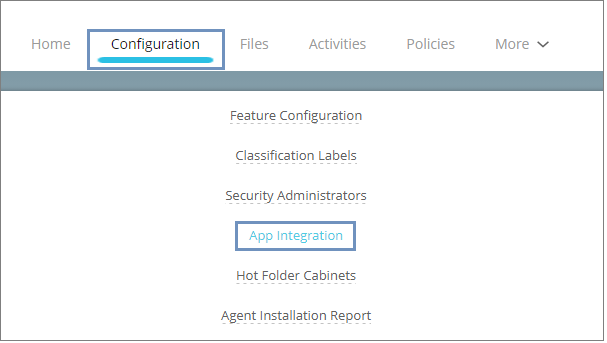
Click Configuration > App Integration.
2. Click the gear icon under the Manage column against the desired Email Auto Protector EA.

3. Click Settings on the left pane.

4. Select a default owner on this page. This owner will be set for protected files if the system fails to identify the configured users in the Email Auto Protector rules.
You can also create new rules and edit exisiting ones.
1. Log in as a Global Security Administrator (GSA). GSAs have access to all repositories in an enterprise.
2. Click Configuration > App Integration.
3. Click the gear icon under the Manage column against the desired Email Auto Protector EA.
4. Click Add Rule.

Configure the rule details on the next page.
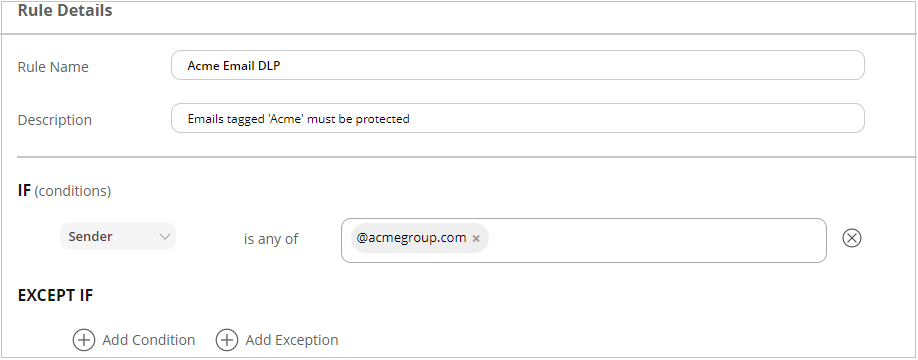

5. Click Done to set the rule. Then click Save and Apply Changes to save the changes.

Multiple rules can be configured. They will be executed in order - starting from the top. Use the arrows to the right of every rule to change its position.
Note that rules will not be saved to the server unless you click Save and Apply Changes.
You're all set to get started. Send an email as per the rules set by you, and it'll be automatically ptotected by Seclore.
Go back to Configuring Transport Rules