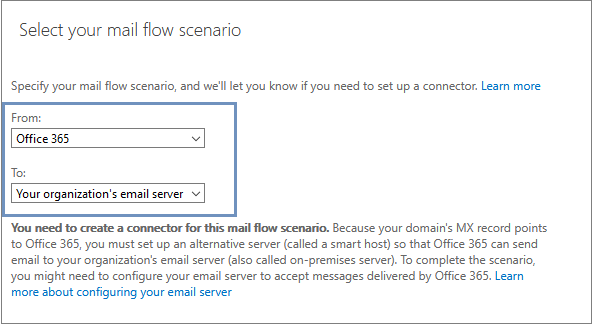
In this step, we'll configure a Send Connector to route emails from Exchange Online to Seclore EAP.
1. In 'Select your mail flow scenario' make the following selections:
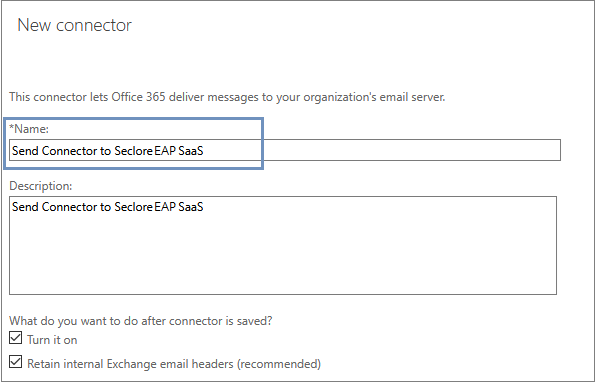
2. Name the connector 'Send Connector to Seclore EAP SaaS'.
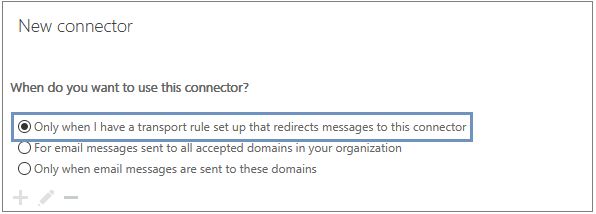
3. In the 'When do you want to use this connector' field, select 'Only when I have a transport rule set up that redirects messages to this connector.'
4. Select smart host as 'CustomerName-mail.stringsend.com'.
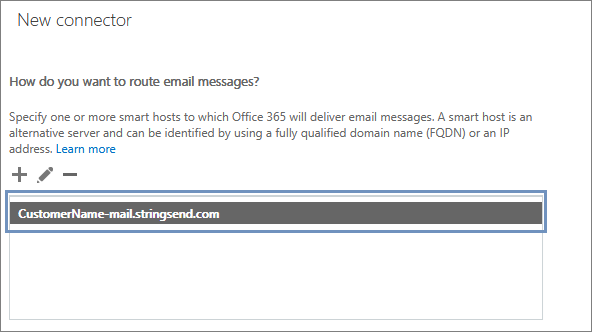
Note: The FDQN will be proivded by Seclore.
5. For 'How should Office 365 connect to your email server?' make the following selections. This is to make sure that communication between Exchange Online and Seclore EAP SaaS setup is always over TLS.
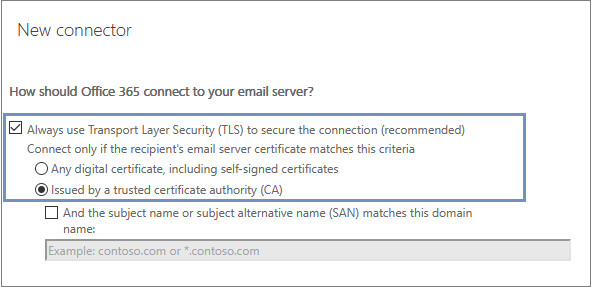
6. Verify the summary details on the screen, and proceed to validate the send connector. You may see an error while validating the connector which can be ignored. Please save the connector.
Proceed to Configuring a Receive Connector